
ResizeImage
Drop in an image, pick an exact size or a social preset, and download it in seconds. Crop or fit when the shape changes, convert between JPG, PNG and WebP, and watch the real file size as you go.
Everything runs in your browser — your image is never uploaded.
Drop an image here
or click anywhere in this box to browse
JPEG, PNG or WebP · up to 30 MB · up to 24 megapixels
One Photo, Six Common Sizes
The same 832 × 512 source in Crop mode, every frame drawn to the same scale
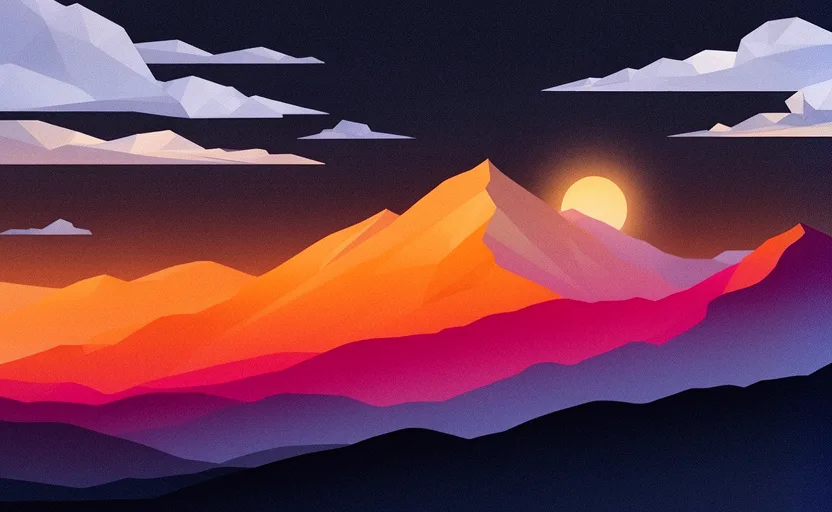
Frames are drawn at their true relative proportions, so you can see how much framing each preset costs a wide source: the portrait sizes keep the centre and drop most of the width. Note this sample is only 832 × 512, so the larger presets scale it up past its own resolution — for those, run it through the AI upscaler first.
Everything the resizer gives you
Exact pixels or a preset
Type the width and height you need, or pick an Instagram, TikTok, YouTube, Pinterest, X or LinkedIn size and let the preset fill both fields.
Nothing is uploaded
Cropping, resizing and encoding all happen locally through your browser’s canvas. Your image never touches a server, so nothing is stored or logged.
JPG, PNG or WebP out
Convert while you resize. A quality slider drives the lossy formats, and PNG stays lossless so transparent logos and screenshots survive the trip.
The real file size, first
Every change re-encodes immediately and reports the actual byte count next to the original, so you can hit an upload limit without guessing.
How It Works
Three steps, all of them in your browser
- 01
Drop in an image
Drag a JPEG, PNG or WebP onto the box, or click to browse. Files up to 30 MB and 24 megapixels are read straight off your disk — there is no upload step and no account to create.
- 02
Set the size and the output
Enter exact pixels, switch to percentages, or tap a social preset. Keep the lock on to hold the aspect ratio; when the target ratio differs, choose whether to crop, fit or stretch. Then pick a format and quality.
- 03
Download the result
The preview and the file size update as you go. When the numbers look right, download the finished image — it is named with its new dimensions so batches stay easy to tell apart.
Tips For Best Results
Small choices that decide whether a resized image looks sharp or washed out
For social posts, start from the preset
Platforms re-compress anything that does not match their expected size, which is where the mushy edges come from. Hitting the exact preset means the only resize is the one you controlled.
Shrinking is safe, enlarging is not
Going down in size discards pixels and stays sharp. Going up can only invent them, so a small image scaled past roughly 2x will look soft. For that, run it through the AI upscaler instead.
Chase a file-size limit with quality, not pixels
If you are 200 KB over an upload cap, drop JPG quality to around 75 before you cut dimensions. Most photos lose almost nothing visible between 100 and 75, and the file often halves.
Match the format to the picture
Photographs belong in JPG or WebP. Logos, screenshots, flat illustrations and anything with transparency belong in PNG — a JPG will fringe the hard edges and fill the alpha with white.
Need more pixels than the original has? Upscale it with AI first, then come back and resize to the exact size you need.
Frequently Asked Questions
Quality, privacy and format questions about resizing images